Before you start
Sampultu does nothing on its own as an instrument. The samples and patterns live on the volca, and the app reads and writes them over a USB cable. It works with the KORG volca sample 2 only. The original volca sample is not supported.
What you need
- A KORG volca sample 2, switched on and running from batteries or a 9 V adapter.
- A USB data cable for the volca's micro-USB port. A charge-only cable won't work, because the app talks to the volca over this cable.
- A Mac, or an Android phone or tablet that supports MIDI and can host a USB device. Google Play only offers Sampultu to devices with MIDI support.
- On Android, usually a USB-OTG adapter or cable between the phone and the volca's cable.
Sampultu is free, and nothing in it is locked. The SUPPORT tab has optional one-off tips and a link to leave a review. You don't need an account, and your samples stay on your device and your volca unless you export them.
What works without a volca
| Tab | With no volca connected |
|---|---|
| SAMPLES, PATTERNS | These need the volca. They show what to do and a LOOK AGAIN button. If you have a snapshot, SAMPLES also shows when you last captured the device. |
| BANKS | You can browse, name, color and edit banks. Capturing, assigning samples, previewing and applying need the volca. |
| CHOP | Everything works except sending to the volca. You can open a file, slice it, listen, separate stems and export a kit. |
| SNAPSHOTS | You can browse, import, export and duplicate snapshots. Capturing and restoring need the volca. |
| SETTINGS, SUPPORT | Both work. |
Connecting the volca
- Switch on the volca.
- Connect it to your Mac or Android device with the USB cable.
- Open Sampultu. It starts on SAMPLES and looks for the volca by itself. There is no device list to choose from: it connects to the first MIDI port with "volca sample" in its name.
- Wait while the app reads the 200 slots, which takes about twenty seconds. The pads fill in and the memory gauge appears.
- The app then reads the audio of every filled slot. The SAMPLES toolbar stays grey until that's done, so a full volca takes longer.
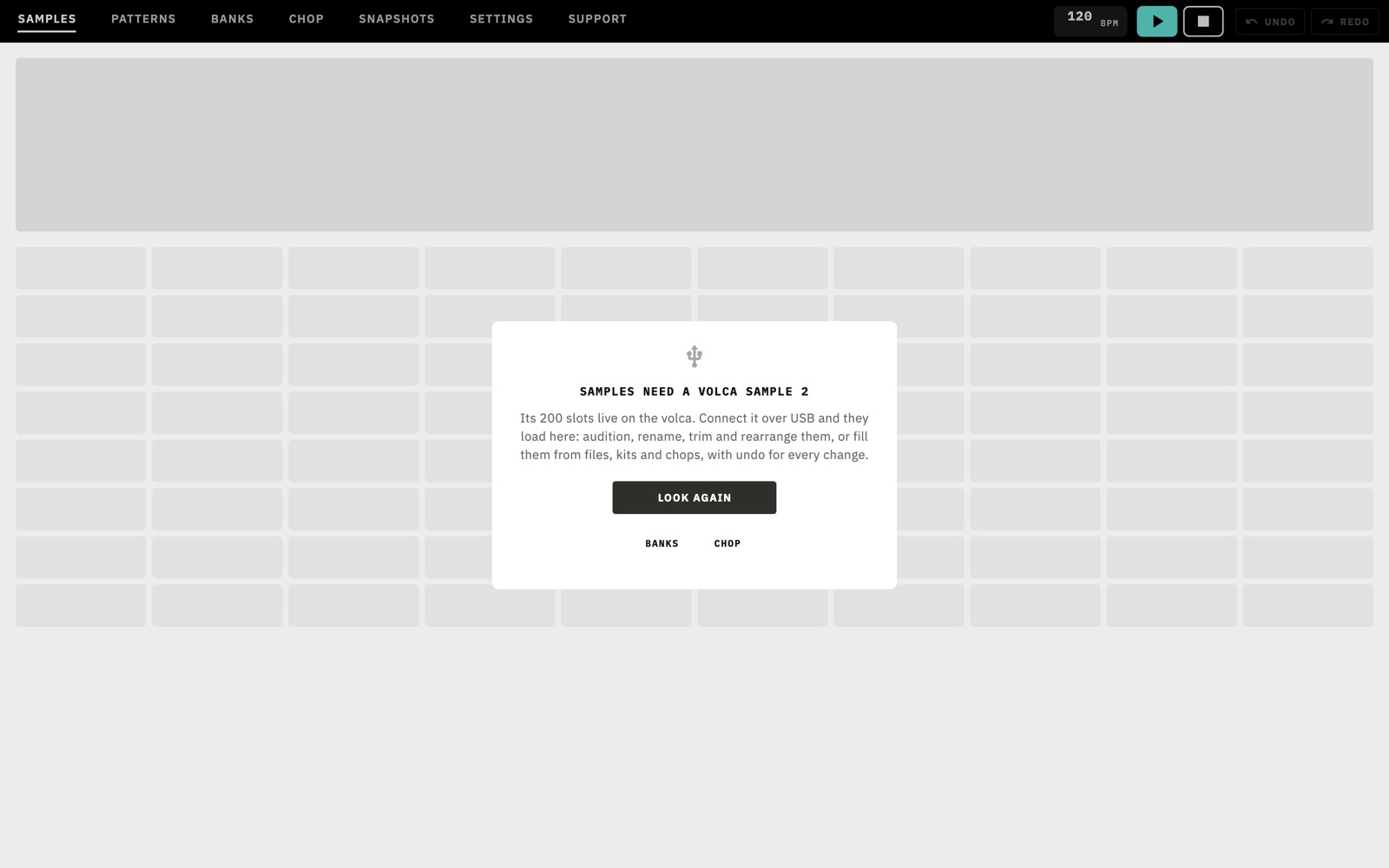
If the app can't find the volca, SAMPLES and PATTERNS say so and offer LOOK AGAIN. The app also notices when you plug in or unplug, so you usually don't need the button. Other tabs show a banner with the same button.
On a Mac
Connect the cable directly to the Mac first. If the volca isn't found, choose Device › Look Again in the menu bar.
On Android
Connect the OTG adapter to the phone, then the volca's cable to the adapter. Android may ask whether to open Sampultu for the USB device. Say yes, and tick the box to remember the choice if it offers one.
One program at a time
KORG's volca sample 2 Librarian holds the MIDI port while it is open. Quit it before you use Sampultu.
What the volca must be set to
The app uses two kinds of MIDI message, and the difference explains most problems.
| Kind | Used for | Depends on the volca's settings? |
|---|---|---|
| System exclusive | Reading and writing samples, patterns and snapshots | No |
| Short messages | Sounding a sample on the volca, previewing bank pads, applying a bank | Yes |
So a volca that won't take short messages can still be backed up and refilled, but it won't play from the app and banks won't apply. Two of the volca's global settings matter here. You set them on the volca by holding FUNC while you switch it on. KORG's owner's manual has the full procedure. The app can't read or change these settings, so it tests the volca each time it connects and reports what it found in SETTINGS.
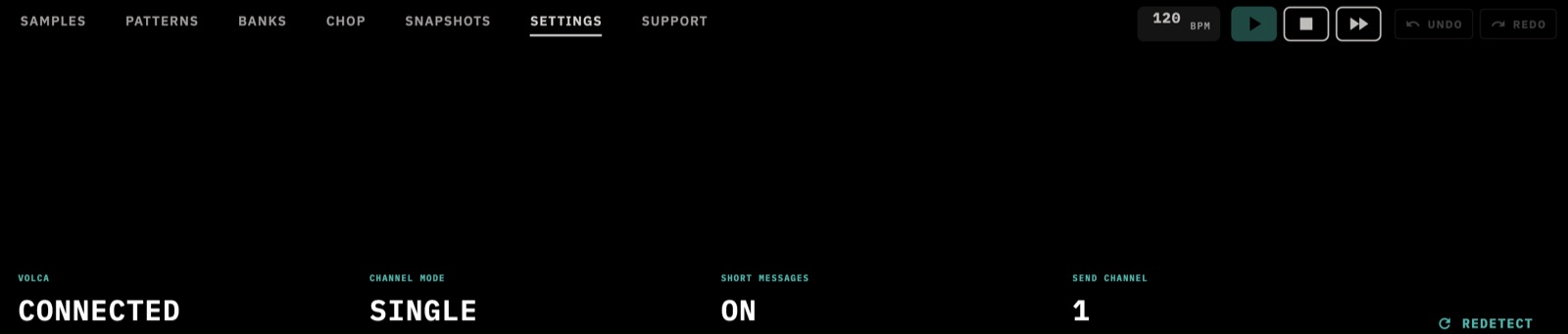
| Readout | What it tells you |
|---|---|
| VOLCA | CONNECTED, CONNECTING or DISCONNECTED. |
| CHANNEL MODE | MULTI, where each part has its own MIDI channel, or SINGLE, where the whole volca listens on one. MULTI is KORG's factory default, and the app works with either. UNKNOWN means the test got no answer. The firmware version the volca reports is shown below this. |
| SHORT MESSAGES | ON means the volca responded. OFF means it didn't. |
| SEND CHANNEL | The channel the app sends on in SINGLE mode. |
If SHORT MESSAGES says OFF
- Check Send channel in SETTINGS. It should be AUTO. A channel set by hand that differs from the volca's is ignored by the volca.
- The readout's hint points to Step 7 on the volca, which is the global setting for receiving short messages. Switch it on, using the owner's manual.
- Tap REDETECT in SETTINGS. On a Mac, Device › Redetect MIDI does the same. Both need a connected volca.
Finding your way around
The tabs
| Tab | What it's for |
|---|---|
| SAMPLES | The 200 slots on the volca. |
| PATTERNS | The 16 patterns on the volca. |
| BANKS | Sets of ten parts, kept in the app. |
| CHOP | Slicing a sound and preparing it for the slots. |
| SNAPSHOTS | Whole-device backups, kept in the app. |
| SETTINGS | What the app found on the volca, and your preferences. |
| SUPPORT | Your version, help, tips and reviews. |
On a narrow screen the tabs scroll sideways.
The transport
The top bar has the same controls on every tab.
- BPM is the tempo for playback in the app, from 20 to 300. It doesn't set the volca's tempo, and it doesn't follow it.
- The play button starts the tab in view. On SAMPLES and CHOP it plays the selected pad. On PATTERNS it plays in the app or starts the volca's sequencer, depending on Sound destination. On BANKS it starts the volca's sequencer only. It is grey on the other tabs.
- The stop button stops everything, from any tab.
- The continue button, with two arrows, resumes the volca's sequencer from where it stopped. It appears only with a volca connected.
Undo
UNDO and REDO cover changes to slots, patterns and settings. Undo takes you to the tab it is about to change, then writes the old version back to the volca. On a smaller window the two buttons show as arrows.
Sampultu keeps up to 12 steps, and fewer if they hold a lot of audio. Device history is cleared when the volca disconnects and after a snapshot is restored. Changes to banks aren't covered.
The 200 slots
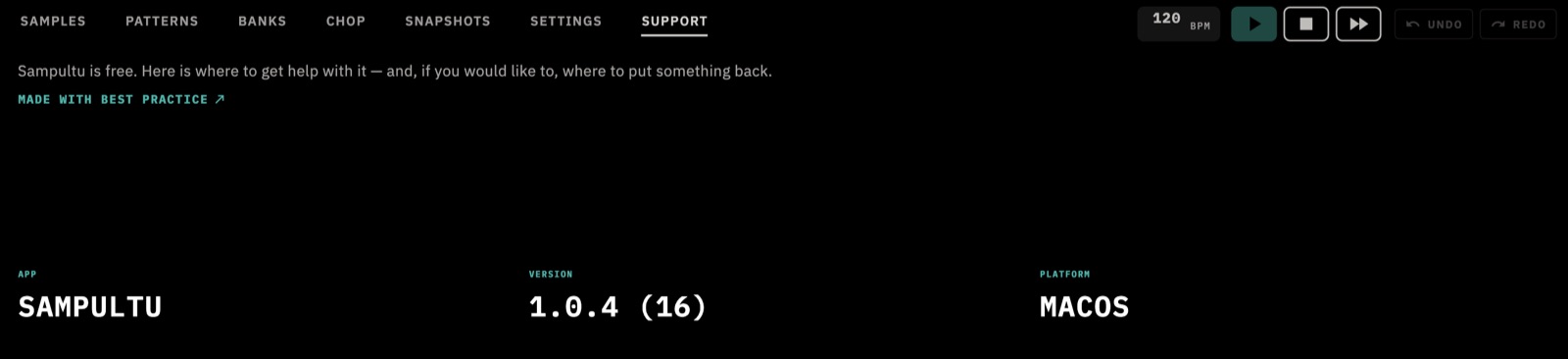
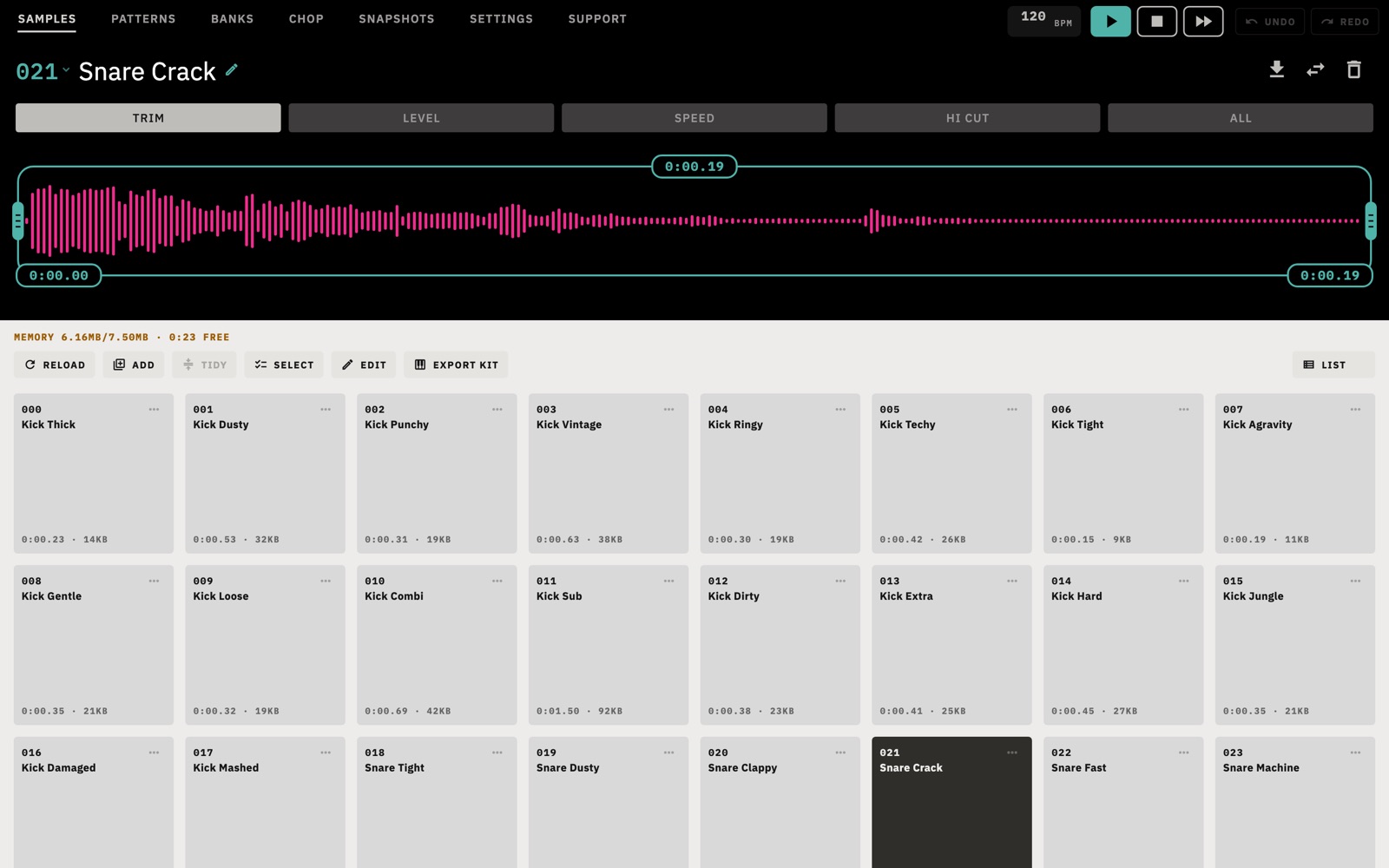
SAMPLES shows every slot on the volca, numbered 000 to 199. Each filled pad shows its name, length and size. The dark panel at the top shows the selected sample.
Sample memory
The MEMORY line shows how much of the volca's sample memory is used and how much time is free. The volca stores 31,250 Hz, 16-bit, mono audio, so a full memory of about 7.5 MB holds a little over two minutes. The slots share that memory, so you can run out of memory before you run out of slots.
Hearing a sample
- Tap a pad to select it and hear it.
- Hold a pad to loop it, and let go to stop.
Where you hear it depends on Sound destination in SETTINGS. APP is the default and plays through your Mac or phone. VOLCA plays on the instrument, and BOTH does both. The app's playback is an approximation, so use VOLCA to hear a sample as it really sounds.
The volca has no command to play a slot directly, so the app borrows one part for previews, part 10 unless you change it. Your other parts are not touched. The app hands the part back when you switch to APP. If you pull the cable first it can't, and that part keeps the last sample you previewed.
The toolbar
| Button | What it does |
|---|---|
| RELOAD | Reads every slot from the volca again. |
| ADD | Fills the empty slots. See Adding sounds. |
| TIDY | Moves samples forward to close every gap. Each move is a full upload, so it can take a while. |
| SELECT | Picks several samples, then DOWNLOAD or DELETE them. |
| EDIT | Drag a pad onto another to swap them, or onto an empty pad to move it. ✕ deletes a sample. |
| EXPORT KIT | Saves the samples as a sampler instrument. See Getting sounds off the volca. |
| LIST / GRID | Switches between pads and a list you can sort by SLOT, NAME, LENGTH or SIZE. |
The menu on each pad
The … on a filled pad offers:
- ASSIGN TO BANK puts the sample and its sound settings on a pad in a bank.
- DUPLICATE copies the sample into the nearest free slot. If there's no room beside it, the app offers to shift other samples over, and each shift is a full upload.
- REPLACE overwrites the slot from a file.
- DOWNLOAD saves the sample as a WAV.
- CLEAR erases the slot.
The + on an empty pad offers FILES and RECORD.
Editing a sample
Select a pad and use the tabs in the dark panel. Each change is applied by itself a moment after you stop moving the control, and UNDO takes it back.
| Tab | What it does |
|---|---|
| TRIM | Drag the handles to set the start and end, or tap a time to type it. The app moves your cut to a nearby zero crossing and adds a tiny fade so it doesn't click. |
| LEVEL | Sets the sample's stored level. |
| SPEED | Sets the sample's stored speed, up to 24 semitones up or down. This also changes its length when played. |
| HI CUT | Filters the top end out of the audio. |
| ALL | Shows every control as a list, including the sound settings below. |
What happens to the audio
LEVEL and SPEED are stored with the sample, so the audio doesn't change. The volca has no such fields for TRIM and HI CUT, so those rewrite the audio in the slot. Before the first rewrite the app keeps the original on your device. Later edits start again from that copy, so you can widen a trim back out, and a filter doesn't stack on itself.
That copy stays with this device and this version of the sample. If the slot is changed any other way, or you use another device, the app works from what's on the volca.
Every edit that writes to a slot sends the sample over MIDI again, so the wait depends on its length.
Renaming
Tap the pencil beside the name in the dark panel. Names can be up to 24 characters.
Sound settings in ALL
Below the sample controls, ALL lists PAN, AMPLITUDE ATTACK, AMPLITUDE DECAY, PITCH INTENSITY, PITCH ATTACK, PITCH DECAY, TRIGGER DELAY, LOOP, REVERB and REVERSE. On the volca these belong to a part, not to a sample. The app keeps them on your device as a profile for the sample, uses them when it previews on the volca, and copies them to a bank pad when you choose ASSIGN TO BANK.
Adding sounds
Tap ADD on SAMPLES to fill the empty slots from one of three sources. To fill one particular slot, select the empty pad and use its panel.
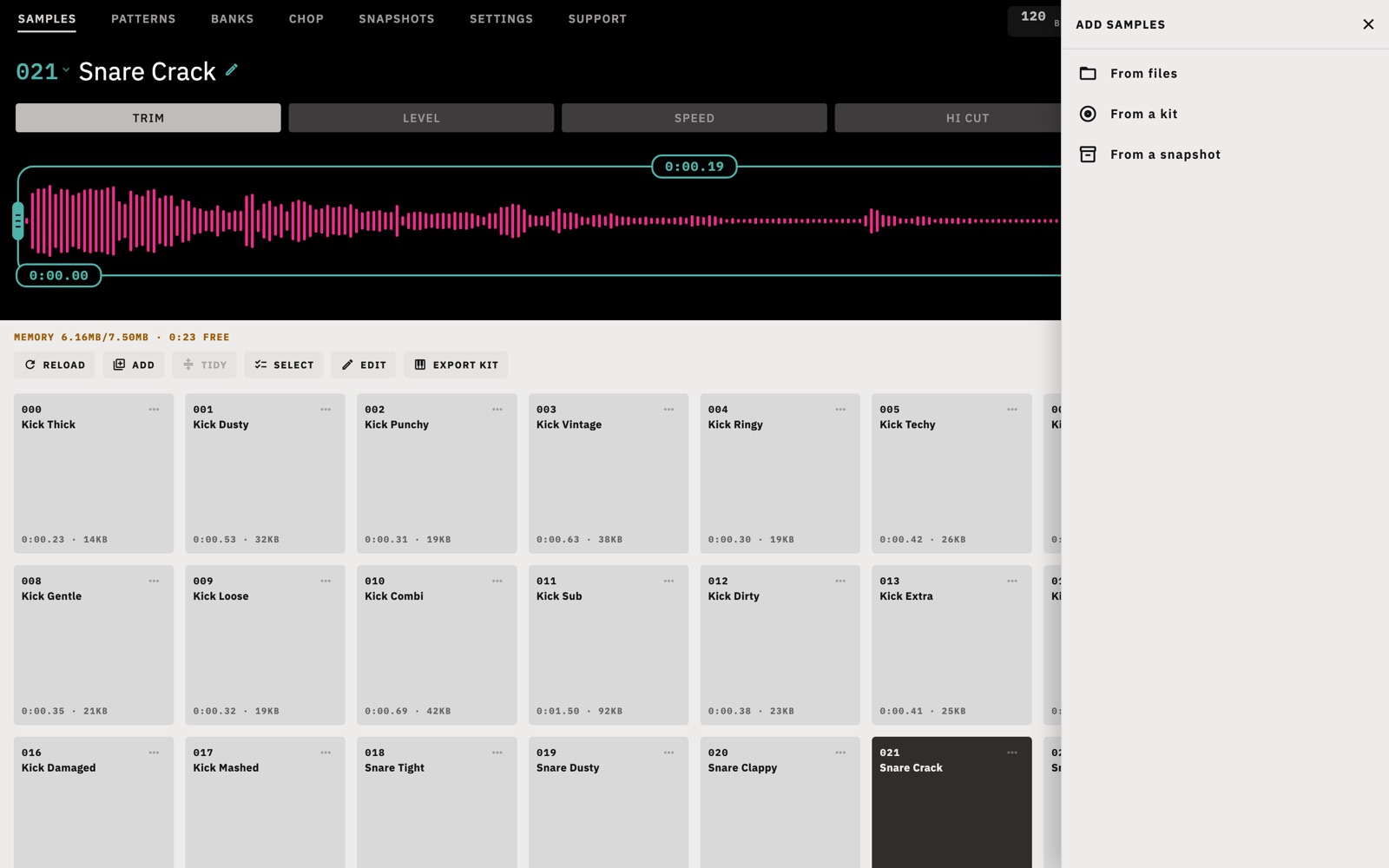
- From files opens your files.
- From a kit lists free kits from outside publishers such as drumkito.com and musicradar.com. The app doesn't download them for you. It opens the publisher's page, you download the zip there, and then you bring the zip back to the app and choose samples from it.
- From a snapshot copies samples out of a snapshot you already have.
New samples go into empty slots only. If there isn't room for everything, the app says how many were skipped. On a Mac you can also drag audio, a video or a kit's zip onto the screen, and dragging onto a filled pad asks before replacing it.
File formats
Sampultu reads WAV and AIFF itself. Other files go to your Mac's or Android device's own decoder, so what opens depends on that device. MP3, M4A and FLAC are the usual ones, and for a video file the app uses the sound. Stereo is mixed down to mono and everything is converted to the volca's 31,250 Hz, 16-bit format on the way in.
Recording
- Select an empty pad. If you don't, the recording goes to the first empty slot.
- Tap ● RECORD and tap ■ STOP when you're done, or hold the button and let go.
The first time, allow microphone access. Recording uses your Mac's or phone's
microphone, not the volca's inputs. It stops by itself when the sample memory is
full, and the new sample is named after its slot, such as
REC 012.
Patterns
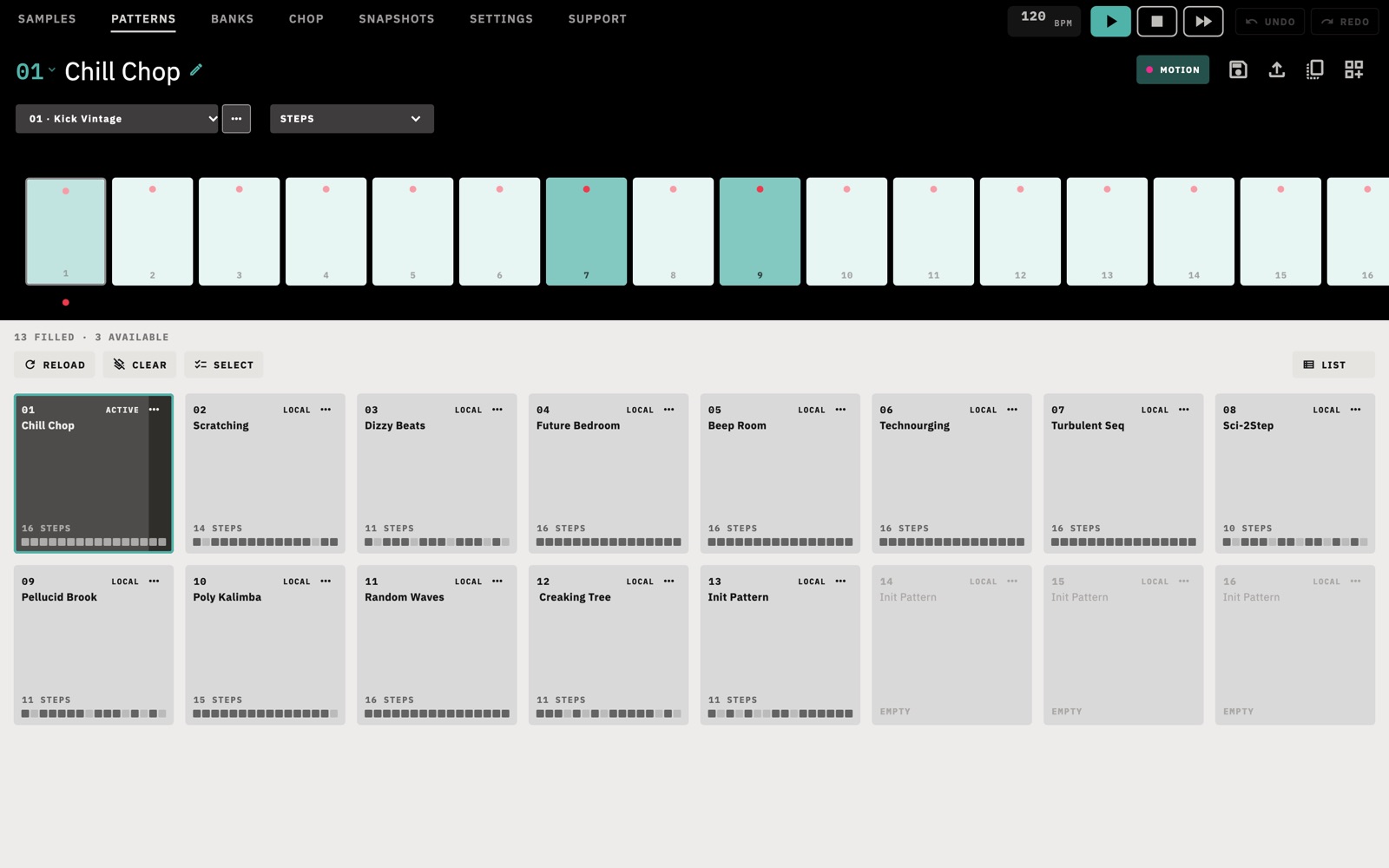
PATTERNS reads the volca's 16 patterns the first time you open it. Each card shows the pattern's number, name and steps, and whether it is LOCAL, ACTIVE or waiting for the NEXT LOOP.
Stored patterns and the panel
The volca keeps 16 stored patterns and one pattern on its panel, which is the one you are playing and editing. Tapping a card loads that pattern onto the panel. This replaces whatever was there, so if you have unsaved work on the volca, save it first or use the panel button described below.
Loading and playing
| Sound destination | When you tap a card |
|---|---|
| APP | The pattern loads onto the panel and loops in the app, built from the volca's samples at the BPM in the top bar. Tap it again to stop. |
| VOLCA | The pattern loads onto the panel. Press the play button in the app, or PLAY on the volca. |
| BOTH | The same, and the app plays along at the volca's tempo while its sequencer runs. Use Sync offset in SETTINGS to line the two up. |
If the volca's sequencer is running and the app has seen it start, a new pattern waits and changes at the end of the loop. The card shows NEXT LOOP until then.
Editing steps
- Open a pattern and choose a part in the first dropdown. It lists parts 1 to 10 with their samples.
- With STEPS in the second dropdown, tap the tiles to switch steps on and off.
- Use the … beside the part to ASSIGN SAMPLE, REPLACE SAMPLE or CLEAR it. Wait for the slots on SAMPLES to finish reading first.
Edits are written to the stored pattern on the volca straight away, and to the panel too if that pattern is the one loaded. UNDO puts them back.
Motion
The second dropdown also lists the motion lanes: LEVEL, PAN, SPEED, AMPLITUDE ATTACK, AMPLITUDE DECAY, PITCH INTENSITY, PITCH ATTACK, PITCH DECAY, START POSITION, SAMPLE LENGTH and HIGH CUT. Choose one and drag a step to redraw it, or tap the number to type a value. The MOTION button at the top switches motion on or off for all ten parts. Switching it off keeps the recorded motion, so you can switch it back on.
Saving, copying and clearing
| Control | What it does |
|---|---|
| Save icon | Saves the open pattern to a .vlcsplpattb file. |
| Upload icon | Replaces the open pattern from a file, after asking. |
| Copy icon | Copies the open pattern onto another. |
| Panel icon | Saves the pattern on the volca's panel to a file, including edits you haven't stored. |
| Number | Tap the pattern's number to swap it with another. |
| CLEAR | Blanks the open pattern: every step goes off and the name clears. |
| SELECT | Picks several patterns, then BACK UP saves them to a folder or CLEAR blanks them. |
| RELOAD | Reads all 16 from the volca again. |
The … on a card offers EXPORT, REPLACE, COPY TO… and CLEAR.
Banks
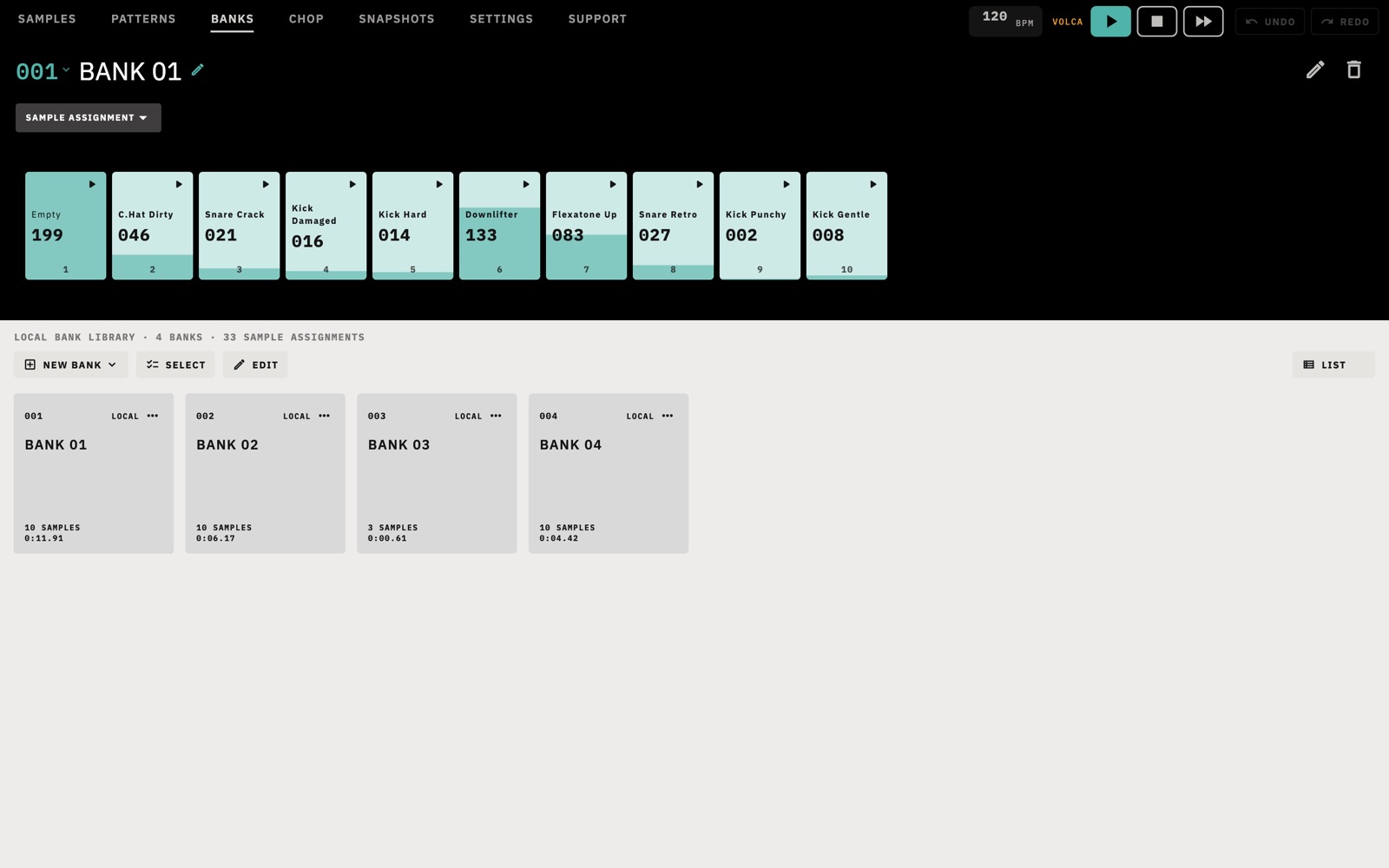
The volca has ten parts. A bank is a saved setting for all ten: a sample for each, plus its level, pan, speed, envelopes, loop, reverse and reverb. Banks are kept in the app on this device, not on the volca, and they aren't part of a snapshot.
Making a bank
- NEW BANK › EMPTY BANK starts with nothing assigned.
- NEW BANK › CAPTURE FROM VOLCA copies the ten parts as they are on the panel now. Wait for the slots on SAMPLES to finish reading first.
- ASSIGN TO BANK on a pad in SAMPLES sends a sample and its sound settings to a pad in a bank.
Editing a bank
Tap a bank, then choose a setting from the dropdown above the pads, starting with SAMPLE ASSIGNMENT. Each pad becomes a fader for that setting. The pencil turns on pad editing. The play button on a pad previews it on the volca through the reserved part, and it needs short messages.
Applying a bank
Tap a bank's card with a volca connected. The app sends the ten parts to the volca as short messages, so SHORT MESSAGES must read ON. A pad with no sample is silenced for that bank. If the sequencer is running and the app has seen it start, the bank waits for the end of the loop and the card shows NEXT LOOP. Otherwise it applies at once and the card shows LIVE.
A bank points at slot numbers, not at audio. If a slot it needs has been emptied, the app asks you to assign another sample. Applying a bank changes the parts on the panel, and the app doesn't store that into a pattern.
Keeping banks tidy
SELECT picks several banks to recolor or delete. EDIT lets you drag them into order. The … on a card offers DUPLICATE, CHANGE COLOR and DELETE. Deleting a bank doesn't change the samples on the volca.
Chopping a sound
CHOP prepares a sound for the volca's slots. It works with nothing connected: only sending the results needs the volca.
Opening a sound
Tap OPEN A SAMPLE and choose a source:
- From a file opens audio or a video's sound. On a Mac you can drag a file in instead.
- From a sample on the volca reads one from a slot. Open SAMPLES first so the slots have been read.
- From a snapshot takes one from a snapshot you have.
CHOP works at the volca's own format, so you hear what the volca will play. Its file picker lists fewer formats than SAMPLES: WAV, AIFF, MP3, M4A, AAC, FLAC, CAF, MP4, MOV, M4V, MKV and WebM, as far as your device can decode them.
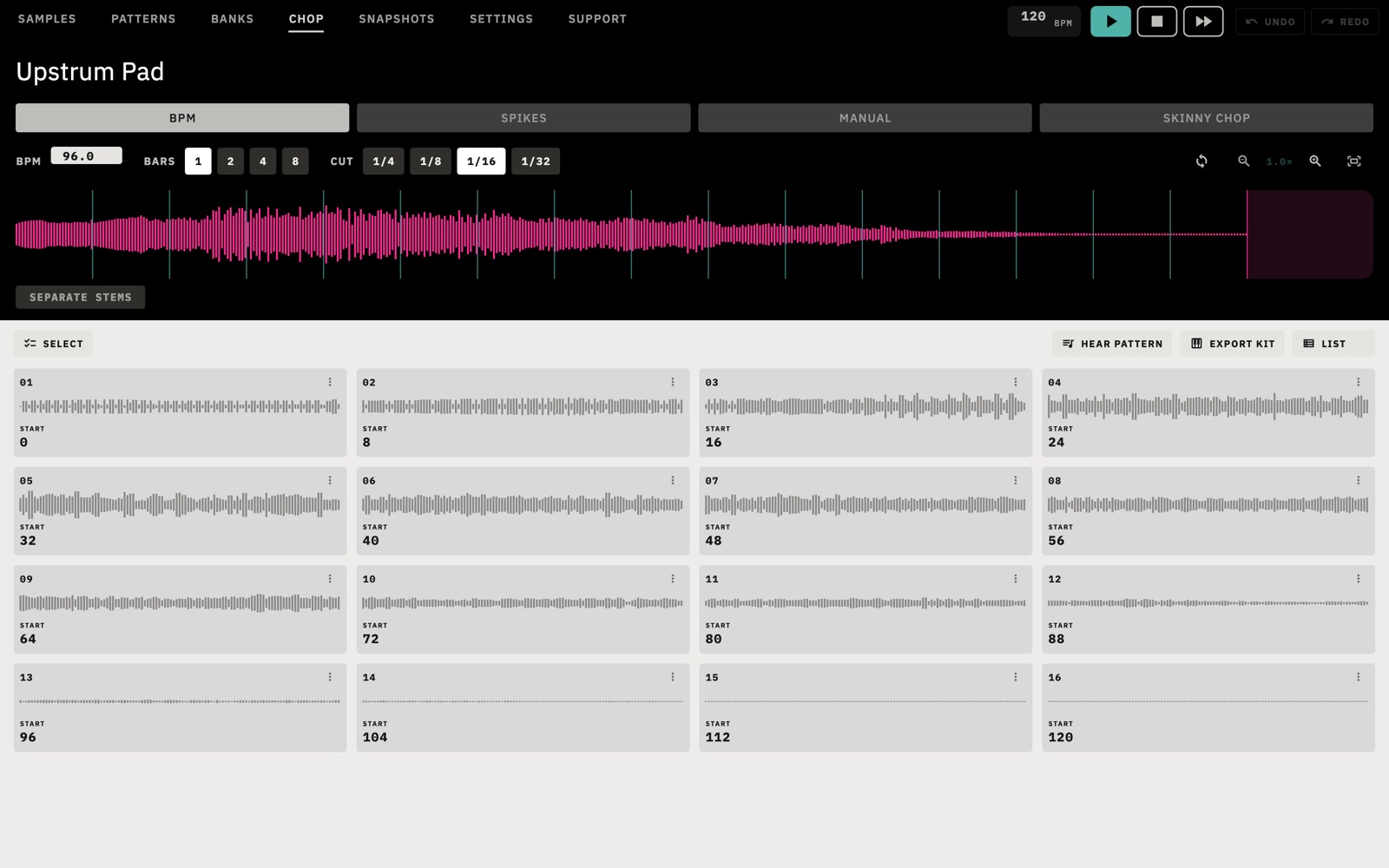
The four modes
| Mode | How it cuts |
|---|---|
| BPM | Evenly by tempo. Set BPM, BARS and the CUT size. |
| SPIKES | At the attacks it finds. SENSITIVITY sets how many. |
| MANUAL | By hand. Pick chops in another mode first, then select a pad and drag its handles on the wave. |
| SKINNY CHOP | Into 4 to 128 equal chops of one slot. See SKINNY CHOP. |
Tap a pad to hear a chop. The loop button repeats it, and you can zoom the wave with the buttons or by pinching.
Sending chops to the volca
- Tap SELECT and tap the pads you want. ALL THAT FIT picks from the first chop until the volca is full.
- The readout shows the slots and memory the picks will use.
- Tap SEND. Each chop goes to a free slot, and UNDO takes them back.
The ⋮ on a pad offers Save to samples for one chop, Download .wav… and Rename…. EXPORT KIT saves the chops as a kit. See Getting sounds off the volca.
SKINNY CHOP
Sixteen chops would normally take sixteen slots. SKINNY CHOP uses one. The volca plays the same sample on every step, from a different START and LENGTH each time.
The volca's START control doesn't reach the very end of a sample, so the app adds silence to the end of the loop. That makes the control's values land evenly across your audio. Each pad shows the START value for that chop.
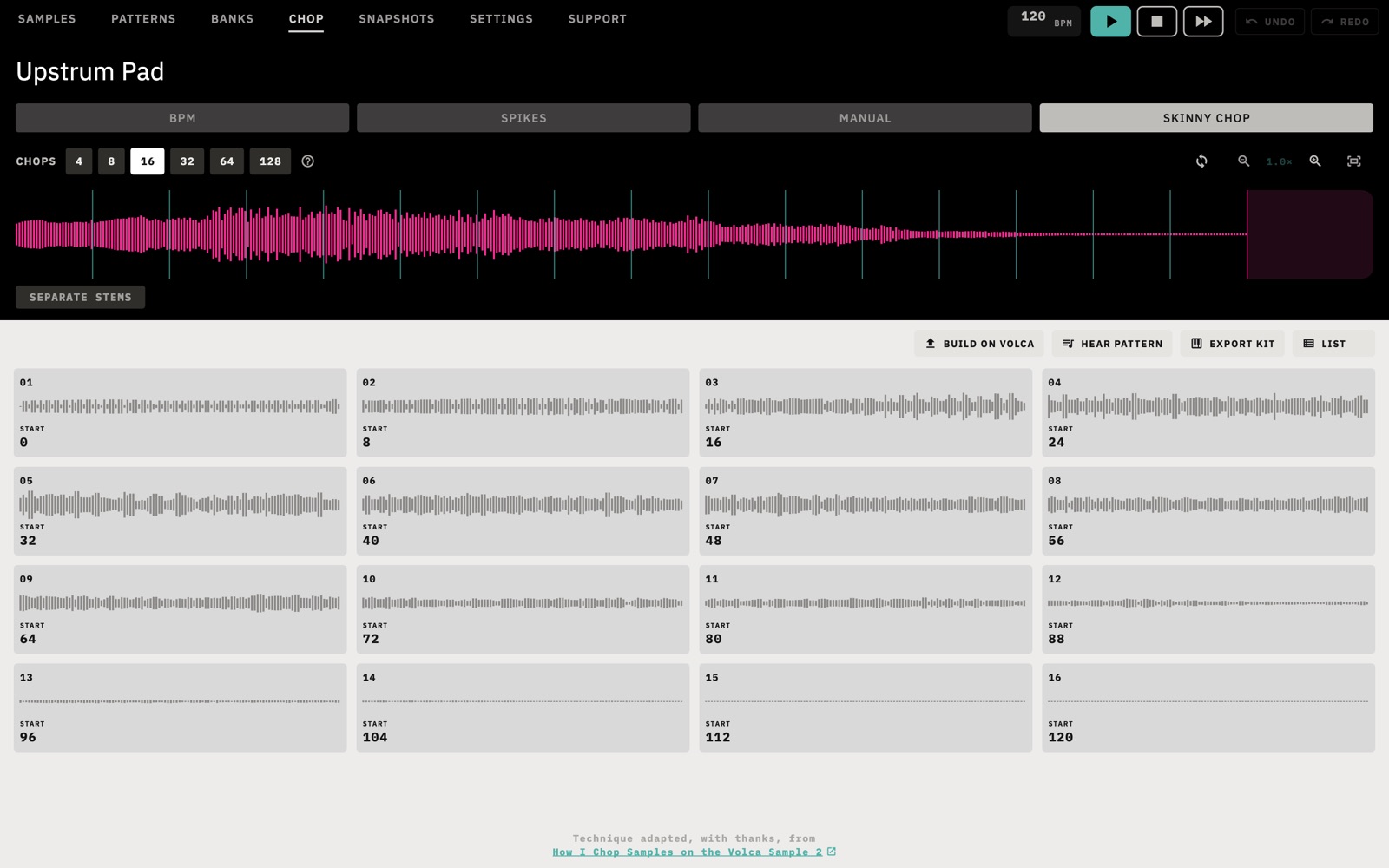
- Open a loop in CHOP and choose SKINNY CHOP.
- Choose the number of CHOPS. A pattern has 16 steps, so hearing it as a pattern or building it needs 16 chops or fewer.
- Tap HEAR PATTERN to hear it in the app. This works with no volca connected.
- With the volca connected, tap BUILD ON VOLCA and choose a pattern.
- When it's done, choose that pattern on the volca and press PLAY.
The build puts the padded loop into the first free slot and rewrites part 1 of the pattern you chose: its steps, its sample, and its START and LENGTH motion. The other nine parts stay as they are. It needs one free slot and enough memory for the loop and its silence. UNDO puts the pattern back.
The technique is adapted, with thanks, from the video credited in the app.
Separating stems
Tap SEPARATE STEMS under the wave in CHOP to split a track into DRUMS, BASS, VOCALS and OTHER. Then choose a stem, or ORIGINAL MIX, and chop inside it.
- It runs on your device. Your audio isn't uploaded.
- It needs a one-time download of about 75 MB, which the app asks about first. After that it works offline.
- It needs the original file. A sample read from the volca or from a snapshot is already mono at 31,250 Hz, so the app asks you to open the audio it came from.
- The file must be under thirty minutes. Separating takes a while, and longer on a slower device.
Snapshots and backups
A snapshot is a backup of the whole instrument, kept on this device: every sample, all 16 patterns and the pattern on the panel. It doesn't include banks or the volca's global settings.
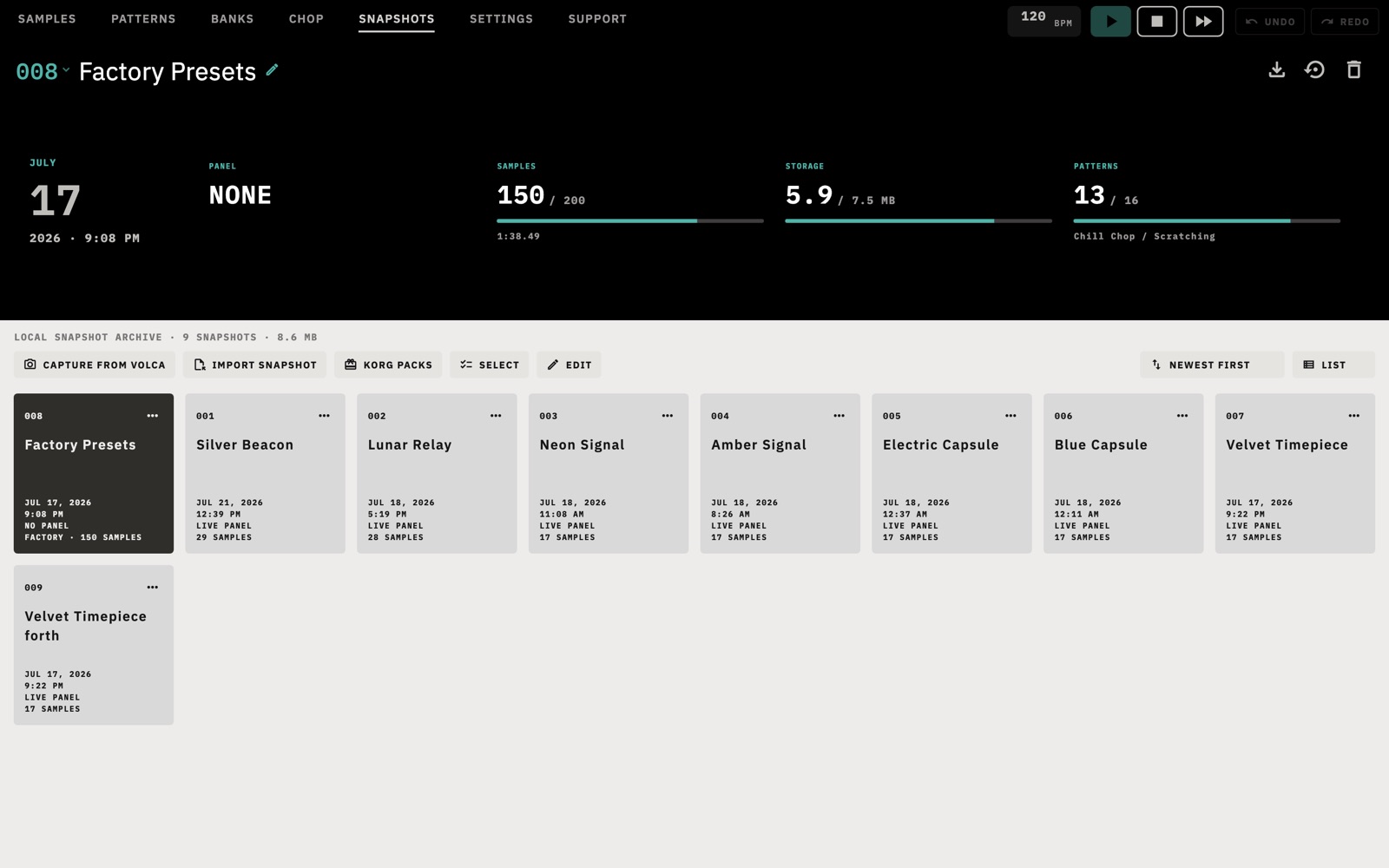
Capturing
Tap CAPTURE FROM VOLCA. Wait for SAMPLES to finish reading first. A full read takes a few minutes. By default the app also offers a snapshot the first time it sees a volca in each session. You can change that with Snapshot on connect in SETTINGS.
Restoring
Choose SEND TO VOLCA from a snapshot's … menu and confirm with RESTORE EVERYTHING. This replaces every slot, all 16 stored patterns and the panel pattern. It takes several minutes and must not be interrupted, and it clears the undo history.
If the snapshot and what's on the volca both fit in memory, the app writes the new sounds first and clears the old ones last, so an interruption leaves a playable volca. If they don't both fit, it has to clear the volca first.
Files
| Action | What you get |
|---|---|
| EXPORT | A .volca-snapshot file, with everything in the snapshot. |
| EXPORT FOR KORG LIBRARIAN | A .vlcspllib file. That format has no place for the panel pattern, so it's left out. |
| IMPORT SNAPSHOT | Adds a .volca-snapshot, a .vlcspllib or .ivlcsplpreset file from KORG's Librarian, or a KORG bonus pack zip. |
| KORG PACKS | Opens KORG's page for each free bonus pack. Download the zip there and bring it in with IMPORT SNAPSHOT. |
The Korg factory default card has an IMPORT button for KORG's factory preset file from its Librarian. Sampultu doesn't include the factory sounds.
SELECT picks several snapshots to delete, and EDIT lets you reorder them. Deleting a snapshot doesn't change the volca.
Getting sounds off the volca
- One sample: DOWNLOAD in a pad's … menu saves a WAV.
- Several samples: SELECT, pick pads, then DOWNLOAD.
- A playable kit: EXPORT KIT on SAMPLES saves every sample. On a Mac, File › Export Kit… saves only the selected samples if you use it in SELECT. EXPORT KIT on CHOP saves the picked chops, or all of them, and needs no volca.
A kit can be plain WAV files, an SFZ instrument, or a Decent Sampler
.dslibrary. Pads land on one note each, chromatically from C1, and
the audio stays at the volca's 31,250 Hz. A kit holds up to 128 samples.
On a Mac you choose where to save. On Android the system share sheet opens, and you choose an app or a location there.
Settings
The readouts at the top are explained in What the volca must be set to. These settings change the app only. Sampultu doesn't rewrite the volca's global settings.
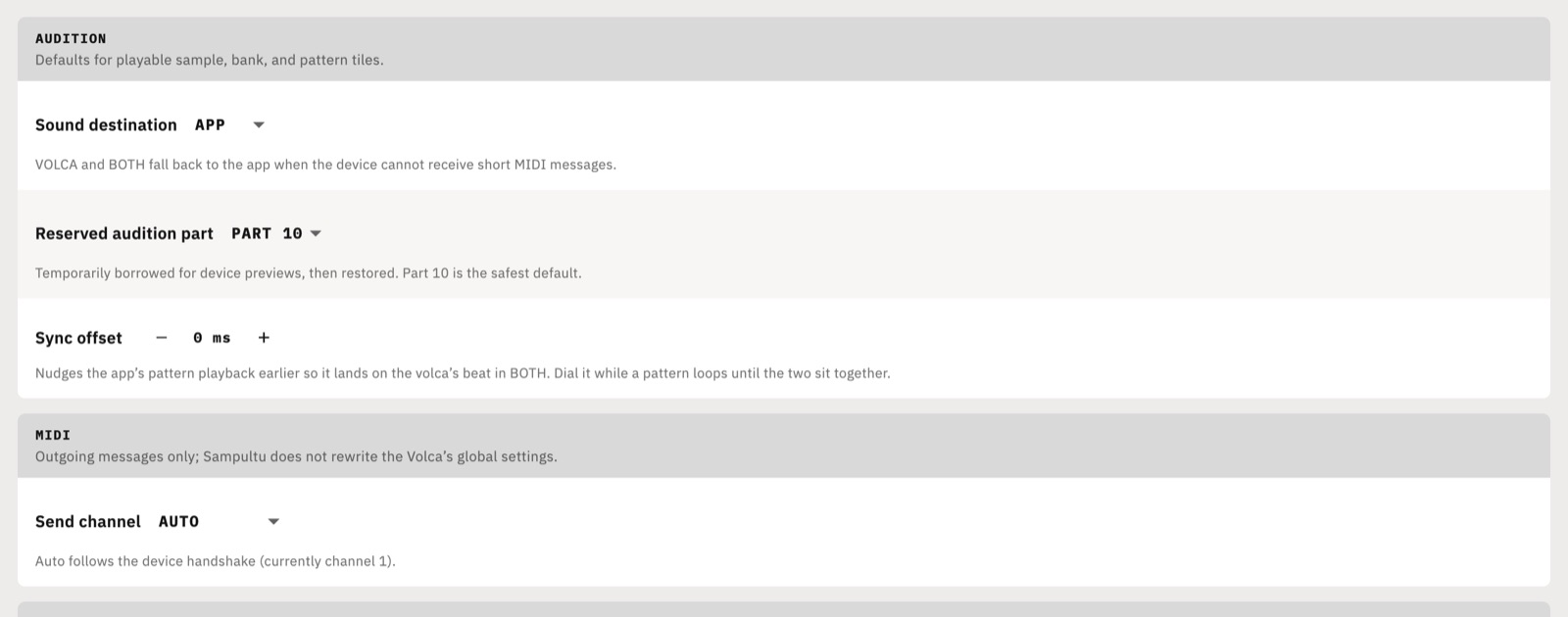
| Setting | What it does |
|---|---|
| Sound destination | APP, VOLCA or BOTH. VOLCA and BOTH fall back to the app when the volca can't receive short messages. In BOTH the two can sound slightly apart. |
| Reserved audition part | The part borrowed for previews on the volca. Part 10 is the default. |
| Sync offset | Plays the app's pattern playback earlier, up to 250 ms in 5 ms steps, so it lands on the volca's beat in BOTH. Adjust it while a pattern loops. |
| Send channel | AUTO follows the channel the volca reports. Leave it there unless you have a reason. It isn't used in MULTI. |
| Snapshot on connect | ASK offers a capture, AUTO takes one, and OFF never does. It applies the first time a volca is seen in a session, once its samples have loaded. |
Menus and keyboard
The menu bar is on the Mac only.
| Menu | Items |
|---|---|
| File | Open in Chopper…, Add Samples…, New Bank, Capture Snapshot, Export Kit…, Export Chops… |
| Edit | Undo and Redo, named after the change they will make. |
| View | The seven tabs. |
| Device | Look Again, Redetect MIDI, Start, Continue, Stop. |
| Key | What it does |
|---|---|
| Space | Stops whatever is sounding, or starts the tab in view. |
| ↑ ↓ | Step through pads or patterns. |
| ← → | Nudge the selected trim or chop edge. |
| E | On PATTERNS, switches hit shaping on or off. It adds the amp envelope and HIGH CUT to playback in the app. |
| ⌘1 to ⌘7 | Mac: go to a tab. |
| ⌘, | Mac: SETTINGS. |
| ⌘O | Mac: Add Samples. |
| ⇧⌘E | Mac: Export Kit. |
| ⌘Z, ⇧⌘Z | Mac: Undo, Redo. |
Glossary
- Slot
- One of the volca's 200 places for a sample, numbered 000 to 199 in the app.
- Part
- One of the volca's ten sound channels. Each part has one assigned sample and its own settings.
- Pattern
- A 16-step sequence for the ten parts. The volca stores 16.
- Panel
- The pattern currently loaded on the volca. The app also calls it the edit buffer.
- Motion
- A value recorded per step, such as a level or a start point, so a part changes as the pattern plays.
- Bank
- A saved setting for all ten parts, kept in the app.
- Snapshot
- A backup of the whole volca, kept in the app.
- Chop
- A slice of a longer sound.
- Stem
- One layer of a track, such as the drums.
- Short messages
- Ordinary MIDI such as notes and controllers, which the volca can be set to ignore.
- System exclusive
- The MIDI messages that carry samples and patterns. The app also calls this SysEx.
- Reserved audition part
- The part the app borrows to play previews on the volca.
Troubleshooting
The app says no volca is connected
Check that the volca is on and that the cable carries data, then tap LOOK AGAIN. Try a direct port instead of a hub. On Android, check the OTG adapter, and make sure the device can host USB.
"No reply" from the volca
The app found the port but the volca didn't answer. Switch the volca off and on, then tap LOOK AGAIN.
COULDN'T READ THE SAMPLES
KORG's Librarian holds the MIDI port while it is open. Quit it and tap TRY AGAIN.
Nothing plays on the volca
Check that Sound destination isn't APP, then check SHORT MESSAGES. See What the volca must be set to. The app falls back to its own playback when the volca won't respond, so you may hear sound from the wrong place instead of silence. Check the volca's own volume and outputs too.
"The Volca is not accepting realtime MIDI messages."
A bank or a bank preview needs short messages. See What the volca must be set to.
"Wait for the SAMPLES slot scan"
Some actions need the slot list. Open SAMPLES and let it finish reading.
There's no room for a sample
You've run out of empty slots or of sample memory. Clear something on SAMPLES, or trim long samples, because a trim frees memory.
A long transfer stops
Large samples travel as one long MIDI message. If the volca stops responding, switch it off and on, let the app reconnect, tap RELOAD, and try again.
Undo has gone
Device history is cleared when the volca disconnects and after a snapshot is restored.
Recording does nothing
Allow microphone access in your system settings. Recording also needs an empty slot and free memory.
A file won't open
WAV and AIFF always work. Other formats depend on your device's decoder. Convert the file to WAV and try again.
"Nothing to separate yet"
The sound came from the volca or a snapshot. Open the original file on CHOP.
Android says the app isn't available for my device
Google Play only offers Sampultu to devices with MIDI support.
Still stuck
Open SUPPORT and tap EMAIL US. With the volca connected, the email includes your app version, the volca's firmware and its MIDI mode, which saves a round of questions. You can also read the support page.
Sampultu is an independent app and is not affiliated with, sponsored or endorsed by KORG Inc. KORG and volca sample 2 are used only to identify compatible hardware. For problems with the instrument itself, contact KORG or your retailer.